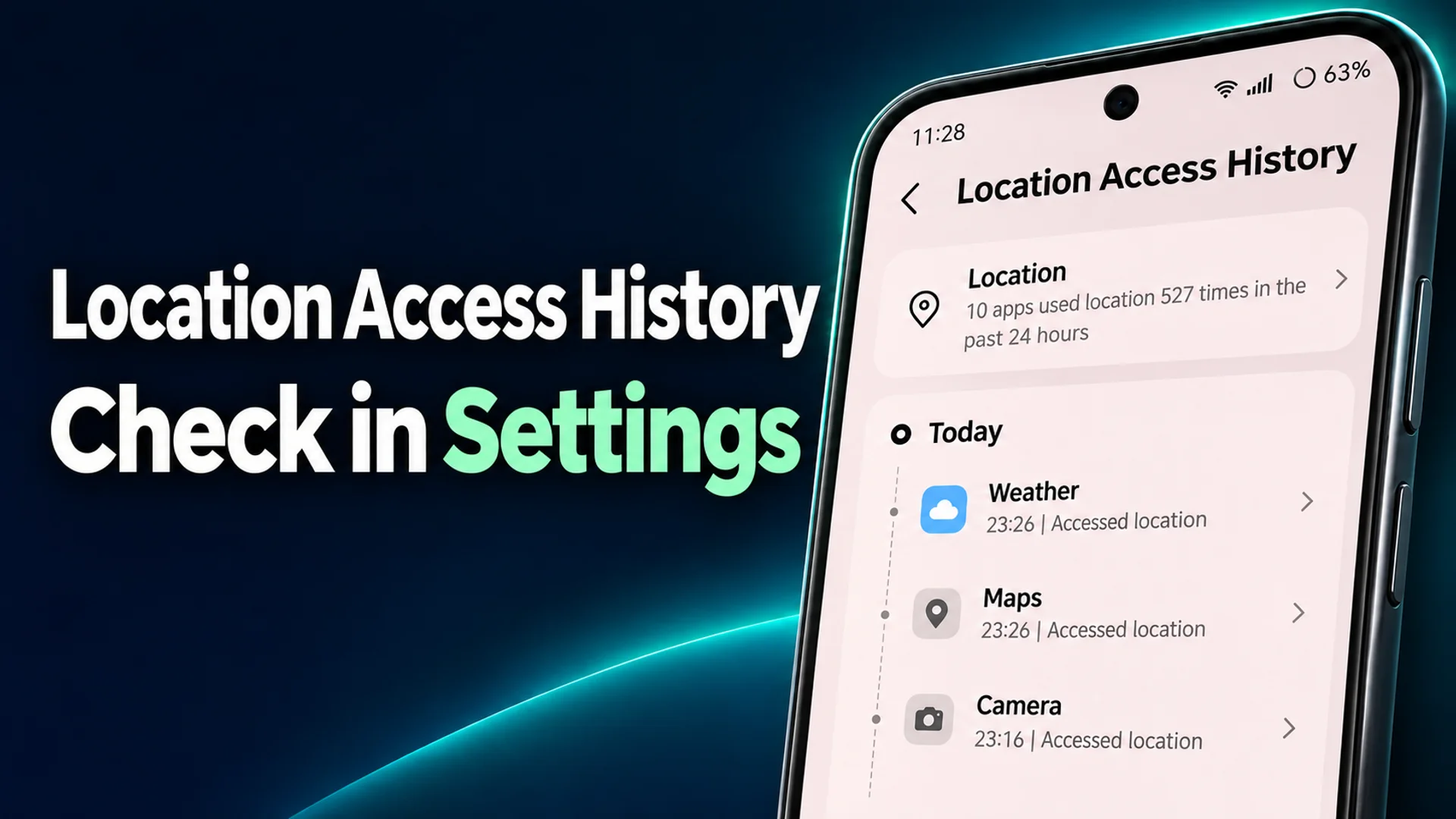
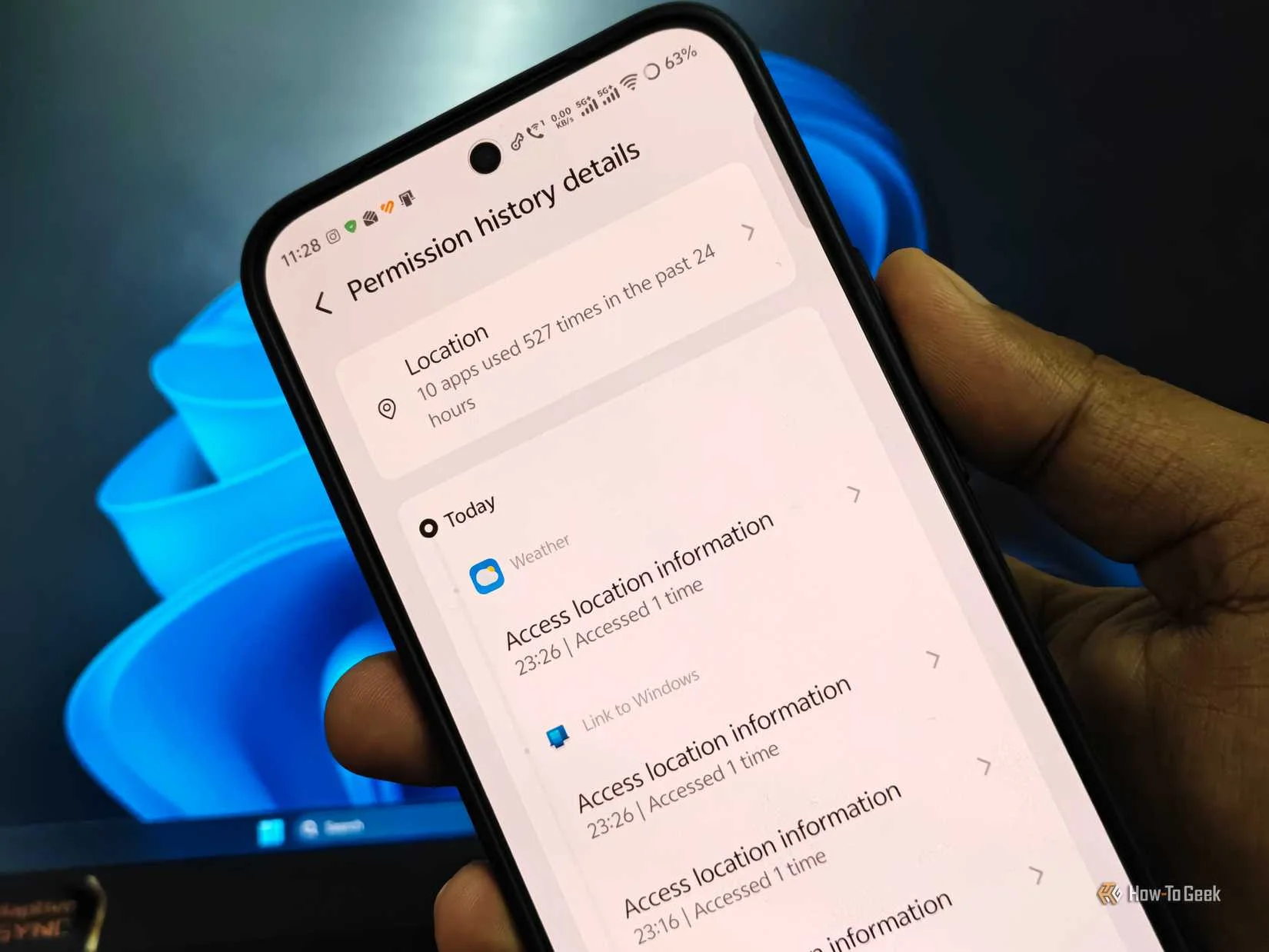
There are occasions when the battery drains unusually fast, and while investigating the cause, you find yourself opening a menu that already exists in your smartphone settings. How-To Geek contributor Vishwamoorthy Ramakrishnan investigated the issue of his Android device losing approximately 12% of battery life overnight and checked the built-in 'Privacy Dashboard'. The screen displayed a record showing that ten apps had accessed location information a total of 566 times over the past 24 hours. Among these, Instagram, which was set to 'Allow only while using the app,' showed timestamps indicating it had accessed location multiple times under 'Background access' 1.
What makes this case interesting is that there is no need to install external apps to view such records. Android smartphones already have built-in tools that record when apps accessed personal data such as camera, microphone, or location, in 24-hour intervals. This article covers the path to opening the relevant menu and what can be confirmed on the screen, as well as why background access persists despite setting permissions to 'Allow only while in use,' and the settings that can be adjusted in such cases.
A Dashboard Showing a 24-Hour Access Timeline
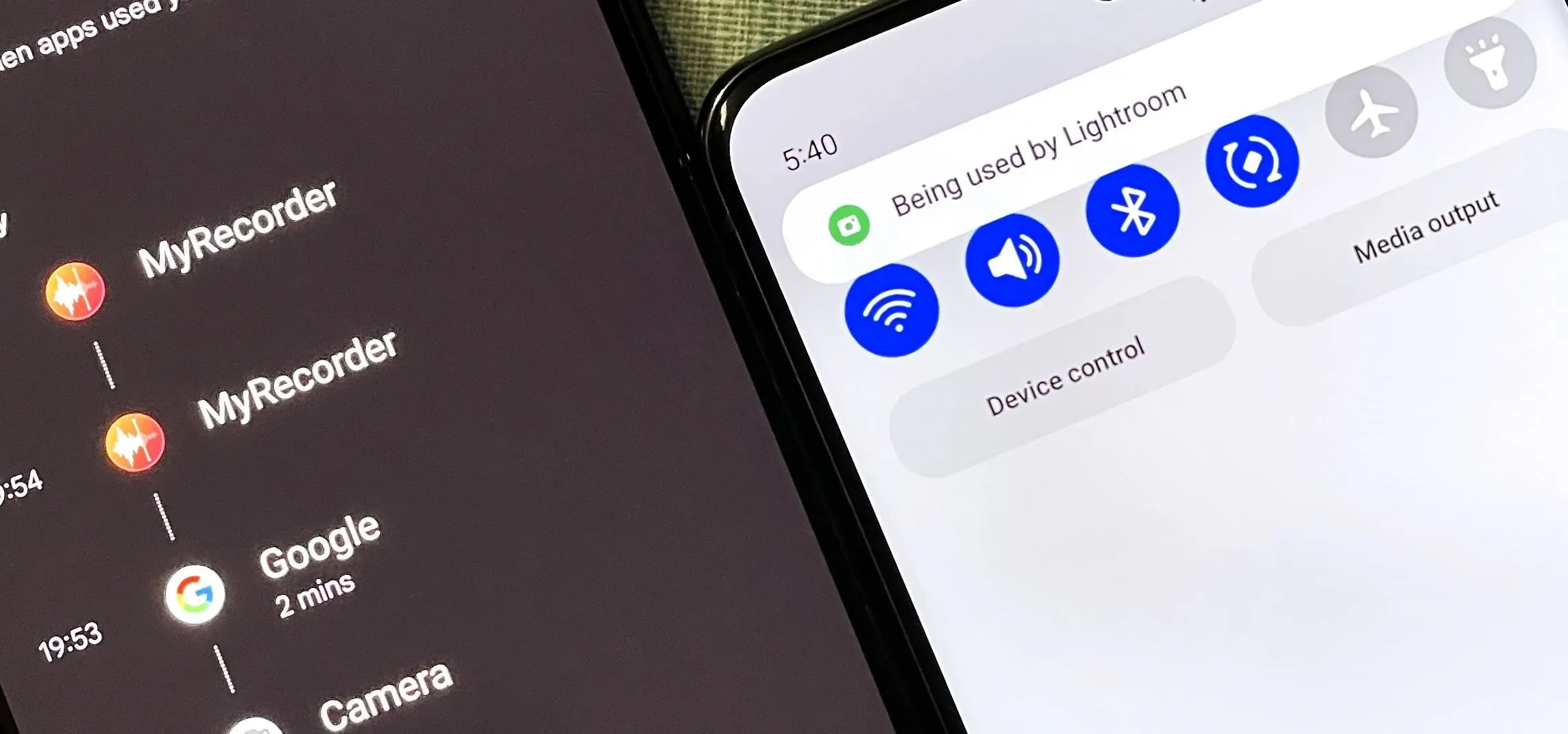
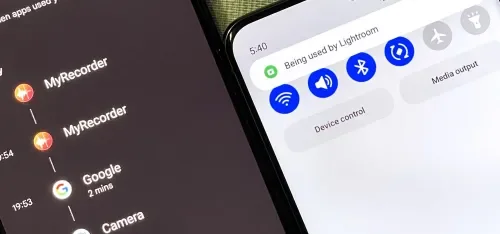
Starting with Android 12, a small green indicator appears in the status bar when an app uses the camera or microphone. This indicator swells for about one second and then shrinks to a green dot in the corner of the screen. Pulling down the notification bar and tapping the icon reveals which app is currently listening to audio or recording video, and allows immediate navigation to that app's permission settings. While specific layouts may vary depending on the manufacturer's screen configuration, the green indicator during use is a requirement for all Original Equipment Manufacturers (OEMs) in Android 12, and the Privacy Dashboard, used alongside history, is also a feature included by default in Android 12 2.
On Google Pixel smartphones, navigating to the path 'Settings → Privacy → Privacy Dashboard' and tapping permission items such as location, camera, or microphone reveals the apps that used those permissions in a chronological timeline. Tapping an app name in the timeline moves to that app's permission settings screen 2. In Samsung Galaxy environments, the dashboard can be accessed via 'Settings → Privacy,' and in Samsung One UI, the path 'Settings → Privacy → Privacy Dashboard' displays usage history by category—such as camera, microphone, location, contacts, calls, calendar, and files—in chronological order 23. The core function of this feature is showing specific access times, such as '3:14 PM yesterday,' rather than stopping at static status labels like 'Allow all the time' or 'Don't allow' 23.
In Ramakrishnan's case, the top of the screen summarized, "10 apps used location 566 times in the past 24 hours," and entering the location section revealed a continuous list of access times by app 1. This equates to roughly 24 times per hour; although not every access involves a request for precise satellite location, frequent background location queries and network synchronization continue to consume standby power 1. Before visually confirming these counts, most users are likely to look for causes of battery drain in heavy tasks such as screen brightness or gaming.
Background Records That Persist Even With 'Allow Only While Using the App'
When setting permissions, choosing 'Allow only while using the app' leads users to easily assume that swiping the app from the screen fully terminates it. Indeed, Google's official documentation defines 'Allow only while using the app' as a setting that permits permissions to be used only when the app is in use 4. However, on actual phones, apps swiped from the screen may remain in memory and perform background synchronization tasks. Ramakrishnan's observation of Instagram clearly illustrates this gap. According to the author's explanation, when the app was simply swiped from the home screen, it did not fully terminate but remained in a cached state, running background synchronization, and this process accessed location and left a 'Background access' label 1.
One must also consider the structure in which location requests consume more power. Each time location is checked, it wakes up the processor and radio from an idle state and involves sending data over the network. If this round trip is repeated, the smartphone cannot enter a deep sleep state, increasing standby power consumption 1. Furthermore, if location permissions are maintained in the background while the 'Precise location' feature is left on, apps turned off on the screen, like Instagram, may periodically update their location 1.
The important point here is that the dashboard records this behavior with timestamps, not 'estimates.' After confirming the 'Background access' label attached to Instagram, the author changed that app and Snapchat to 'Ask every time' mode and disabled the use of precise location 1. Additionally, he turned off the Wi-Fi and Bluetooth scanning features that were enabled within Location Services, noting that Android maintains this scanning by default to determine approximate location when precise location is off 1. After applying these changes for two days, the author observed that the remaining battery life at the end of the day had increased from the previous 12-15% to 25-30%, allowing for approximately two more hours of use 1. However, the author added a caveat, noting that it is difficult to attribute the entirety of this improvement solely to the reduction in location access 1.
Paths to Actually Change Permissions After Viewing Records
If suspicious access is confirmed in the dashboard, permissions can be adjusted on the spot. Tapping the app name in the timeline opens that app's permission settings, and the 'Permission manager' allows users to manage apps with the same permission together 234. The official path in general Android environments, such as Google Pixel, is guided as 'Settings → Security and Privacy → Privacy → Permission manager' 4. In Samsung Galaxy One UI environments, access is possible via 'Settings → Privacy → Permission manager,' allowing users to view the allowance status by app 3.
The risk signal criteria proposed by the Wondershare guide are also worth referencing. These include: an app using the microphone despite lacking audio or call functions, an app using location despite lacking map functions, a game using contacts or SMS, or a background app unexpectedly turning on the camera 3.
Apps unused for long periods can be automatically restricted from access via 'Pause app activity,' and if you want to temporarily prevent any app from using the camera or microphone, you can turn off camera/microphone access globally via 'Settings → Security and Privacy → Privacy → Privacy controls' 4. Another entry point for permission management is temporarily blocking sensors in urgent situations, then long-pressing the app icon to enter the app info screen 2.
The Second Layer Not Shown in Permission Pop-ups: Special App Access
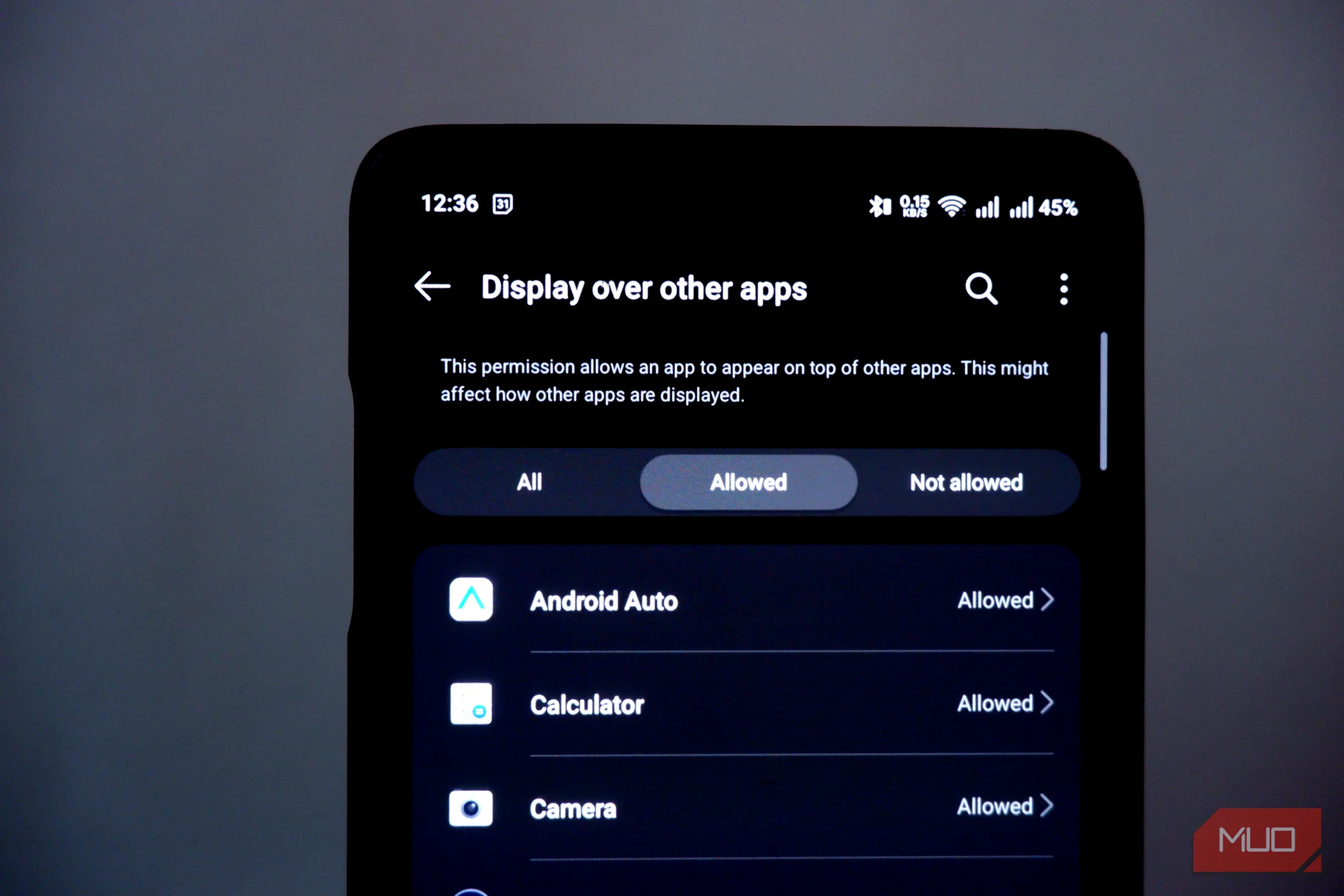
There is a layer that is not fully visible with only the dashboard and permission manager. Abhijith N Arjunan of tech media outlet All Things N pointed out that although Android has provided permission control features for over ten years, system-level permissions such as overlay generation or notification access do not appear well in pop-ups that show during installation or execution 5. These permissions can have a deeper impact on privacy and security, and since Android 8, these special permissions have also become manageable through settings 5.
The relevant menu is located at the path 'Settings → Apps → Advanced (display varies by device) → Special app access,' and it is somewhat difficult to find as it is not separately highlighted in the 'Privacy' section 5. It is also mentioned that the name may change or it may be placed in a different sub-menu on manufacturer screens 5. The nature of items shown in this menu differs from general permissions. Examples include 'Usage access' (which learns how frequently an app is used), 'Display over other apps' (which displays its screen over other apps), 'Notification access' (which can view sensitive contents of device notifications), 'Modify system settings' (which allows changing device system settings without confirmation every time), and 'All files access' (which allows reading and modifying all files and folders separately from media permissions) 5.
When opening the list, many apps are often found to be granted permissions, and the author explains that this is connected to the app onboarding screen. Privileged permissions become attached in the flow between pressing 'Allow' repeatedly immediately after installation 5. Items where function and permission do not match, such as a calculator requiring usage history or a weather app needing an overlay, are candidates for revoking permissions 5. Conversely, the author explains that it is acceptable to leave apps that use 'Display over other apps' for their intended function, like accessibility apps, or notification mirroring apps that require notification access 5. In other words, holding all permissions does not necessarily imply malice, and the purpose of this menu is closer to an inspection to filter out unnecessary items.
To summarize the conclusion, the access records menu in settings allows users to visually confirm how many times and when apps actually queried their data, without needing separate installation. The 'Background access' label remaining on the screen even when set to 'Allow only while using the app' helps identify discrepancies between expected settings and actual behavior, and the dashboard and permission manager allow adjustments such as switching to 'Ask every time' or turning off precise location on the spot 124. Additionally, checking system privileges like notification access or all files access by reviewing the 'Special app access' menu once more allows for the organization of a list of permissions that had never been seen in pop-up windows 5.
References
- ↩
- Your Android Phone May Be Spying on You — Here's How to Tell and Take Control · android.gadgethacks.com↩
- 삼성 갤럭시에서 어떤 앱이 내 데이터에 접근하는지 확인하는 방법 [2026] · drfone.wondershare.kr↩
- Android 휴대전화에서 앱 권한 변경하기 - Android 고객센터 · support.google.com↩
- 대부분의 사용자가 모르는 안드로이드의 숨겨진 권한 메뉴 찾기 – All Things N · new.atsit.in↩