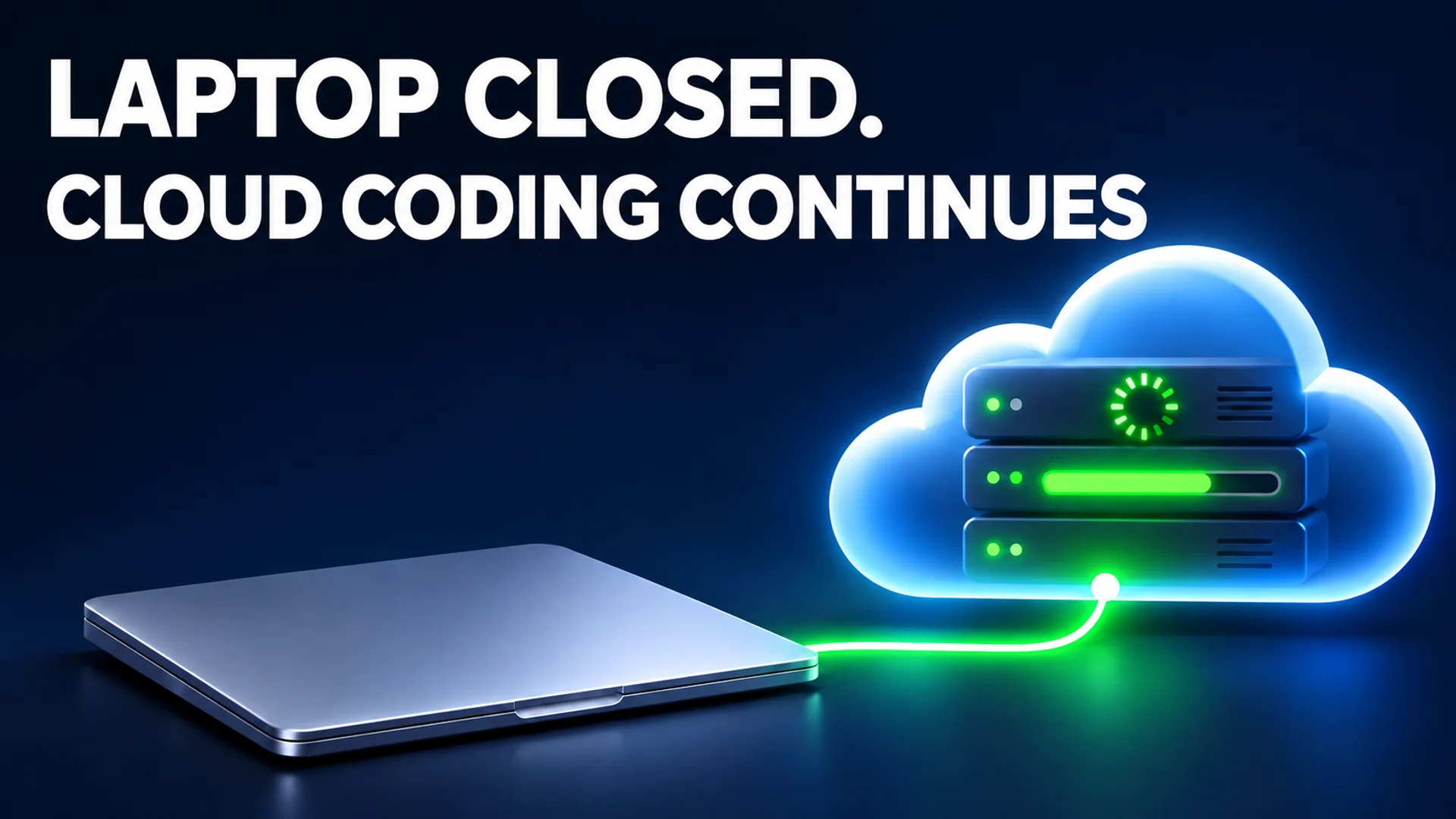
For example, suppose you start a remote session with agy --remote-agent, close your laptop, and go out. Later, by simply adding the two-letter resume option -c and entering agy --remote-agent -c, the previous conversation is fully restored on the server, complete with code that has already been read and tests that have been run. The work progresses even though the developer has not manually edited code or executed tests because the code runs in a cloud environment managed by Google, rather than on the developer's local computer.
On November 3, 2026, Google officially introduced this 'Remote Agents' feature with the v2.29.0 update of its AI coding tool, 'Antigravity' 1. This update allows users to experience an environment where AI fixes code and executes commands on a cloud server, without needing to keep their computer running or constantly watching their PC screen. This post examines how remote AI agents differ from the existing 'Remote Control' feature, which merely mirrors PC sessions to a browser, and details their operational structure.
The Meaning of Placing the Execution Environment in the Cloud
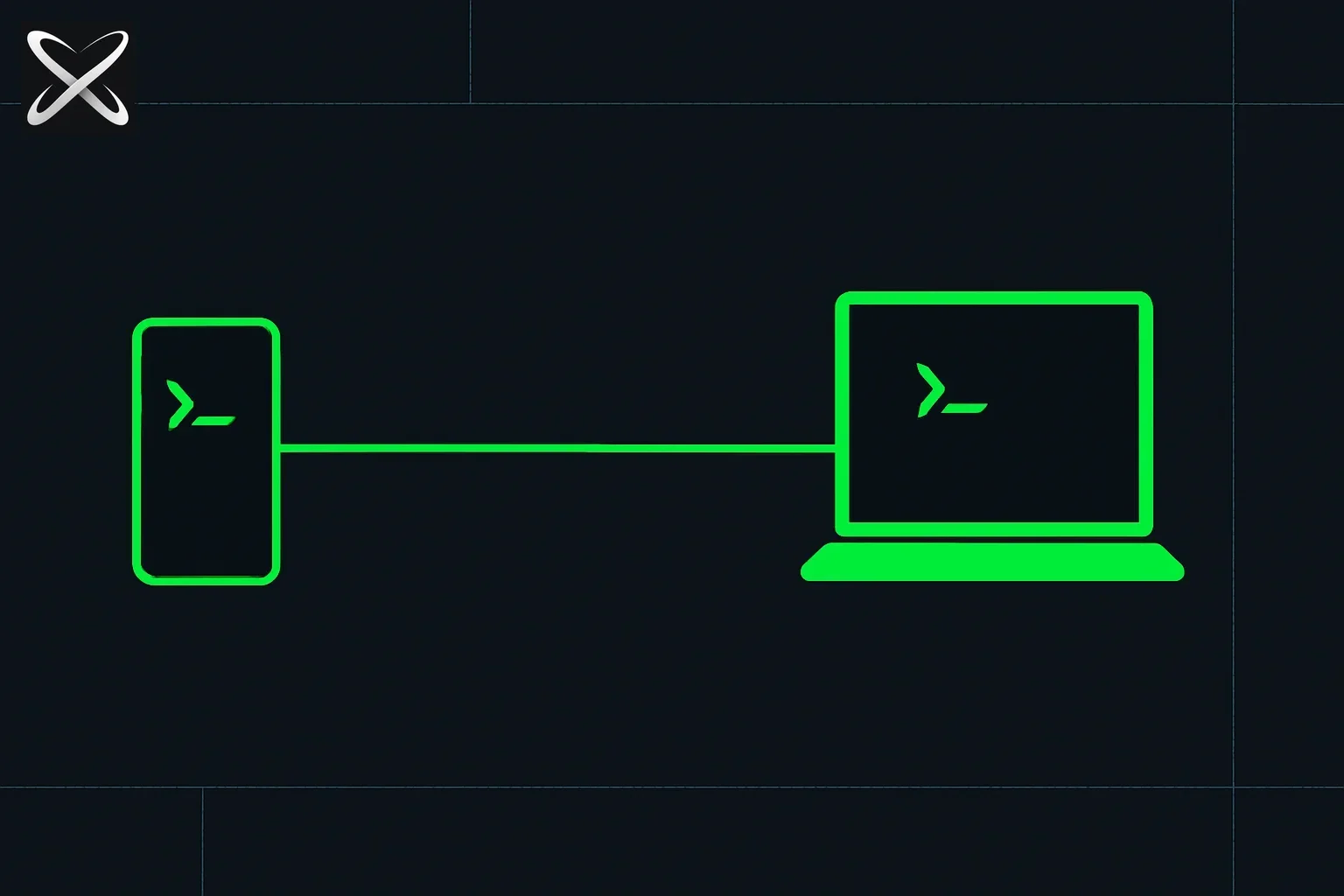
The primary characteristic of Remote AI Agents is that the code execution environment itself moves outside the developer's local machine. According to official documentation released by Google, this feature runs the agent's conversational sessions and tools not locally, but in an 'isolated, Google-managed remote environment' 2. In this setup, all operations where the AI reads, modifies, and tests code occur on Google's servers.
In contrast, the 'Remote Control' feature, released prior to v2.29.0, has a different execution environment structure. Remote Control is closer to the concept of 'mirroring,' where users access an already open AI session on their own powered-on desktop or server via a browser on another device to view the screen and issue commands 3.
Understanding the structural differences between these two features clarifies when and how developers should use each one.
| Category | Remote AI Agents | Remote Control |
|---|---|---|
| Execution Environment | Isolated remote server managed by Google | User's desktop computer or server |
| Local Computer Requirements | Work continues even if power is off or internet is disconnected | Must always be powered on and connected to the internet |
| Work Target | Cloud projects (e.g., GitHub repositories) | Local file system folders, local development tools |
| Suitable Use Cases | GitHub work, mobile work, background execution | Local hardware control, work on local uncommitted code |
As shown in the table, with Remote Control, your PC serves as the 'residence' for the work; thus, closing the laptop immediately halts work or disconnects remote access. However, because the execution residence for Remote AI Agents is the cloud, long-duration tasks do not interrupt even if the developer closes the browser tab or switches screens to a mobile device 2.
File Connectivity and Usage Flow Outside the Local PC
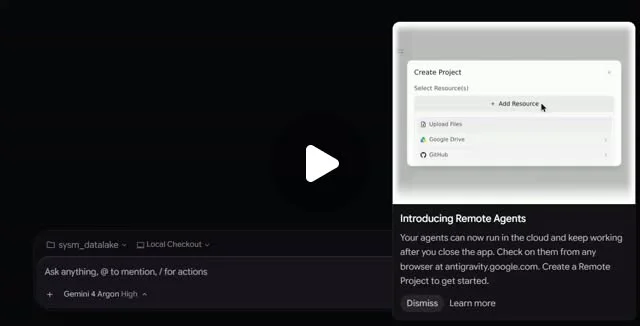
If the execution environment is in the cloud, how are files connected? Remote AI Agents cannot directly access the user's local file system. Instead, projects are configured using a 'Resources' method, which imports external data into the Google Cloud environment. Users attach GitHub repositories, Google Drive files, and files directly uploaded from their local PC to the remote project to proceed with AI coding 2.
This environment can be easily accessed via the terminal-based Antigravity CLI or a web browser. The process of running a Remote AI Agent in the CLI environment, ending a session with incomplete work, and resuming the next day is as follows.
# 1. 터미널에서 원격 AI 에이전트 세션을 시작합니다.
#    (Antigravity CLI 1.4.12 이상 및 Google AI Pro·Ultra 계정 로그인 필요)
agy --remote-agent

# 2. 프롬프트를 입력해 프로젝트를 시작합니다.
# "이 서비스의 의존성 주입 계층을 인터페이스로 추출해"

# 3. 노트북 전원을 끄고 외출합니다. 서버는 작업 진행 중...

# 4. 다른 기기에 CLI를 설치하고 로그인한 뒤, 가장 최근 원격 세션을 불러옵니다.
agy --remote-agent -c
Attaching the --remote-agent flag to the CLI switches the agent to the remote project environment. Subsequently, entering the -c(continue) option restores the previous conversation exactly as it was processed continuously by the server while the PC was off 2. In the web browser environment, users can connect to antigravity.google.com/remote without installing a separate app to start remote conversations or check the progress status of specific projects 1, 2.
Default Settings Facilitating Work Speed and Automatic Approval
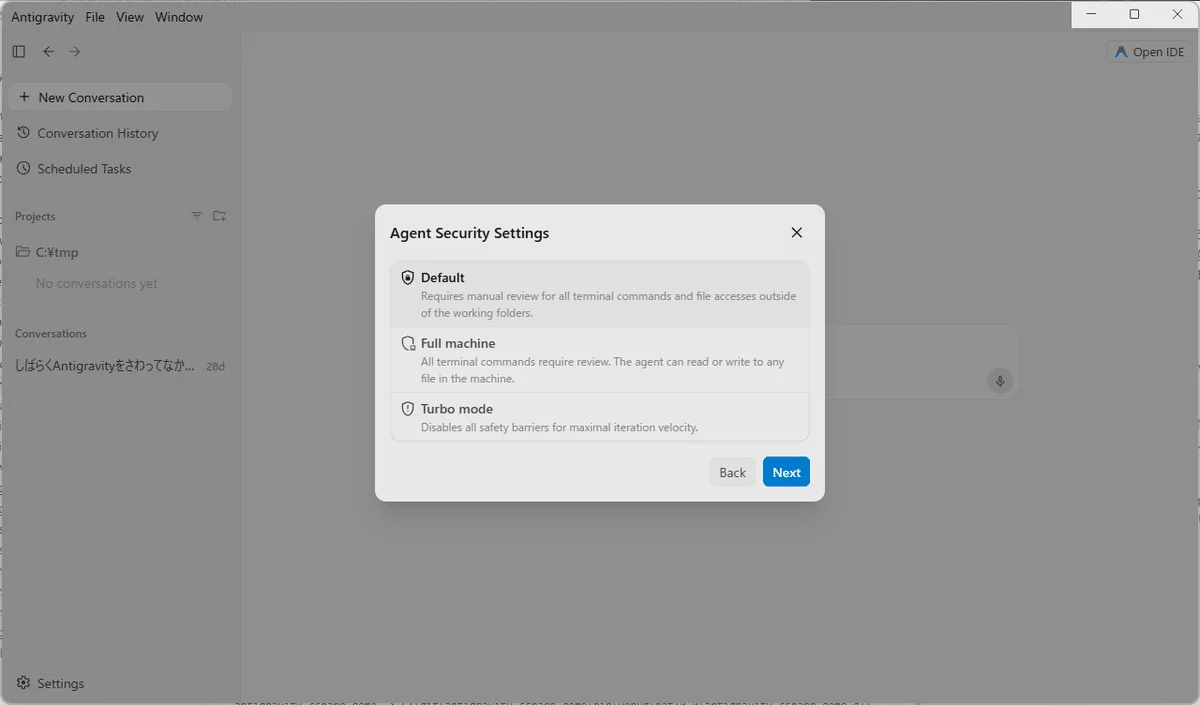
Specific settings are required for AI to continue work smoothly without interruption in a remote environment. According to Google's official documentation, the default permission preset for Remote AI Agent sessions is 'always-proceed (turbo)' 2.
When a developer instructs the AI to perform a task, the AI immediately executes terminal commands without asking for individual confirmation or approval for command execution. This setting allows developers to avoid bottlenecks caused by waiting for AI execution permission approvals while away from their PC 2.
To enhance user convenience, a voice mode based on Gemini Live was also included in v2.29.0. This feature allows users to converse with AI via voice to issue work instructions 4, 1. However, this voice input feature itself is explicitly stated as currently unavailable in remote CLI session environments 2. Voice input, code search, and the use of plugin-based tools are limited to sessions in local environments 2.
When Remote AI Agents Shine
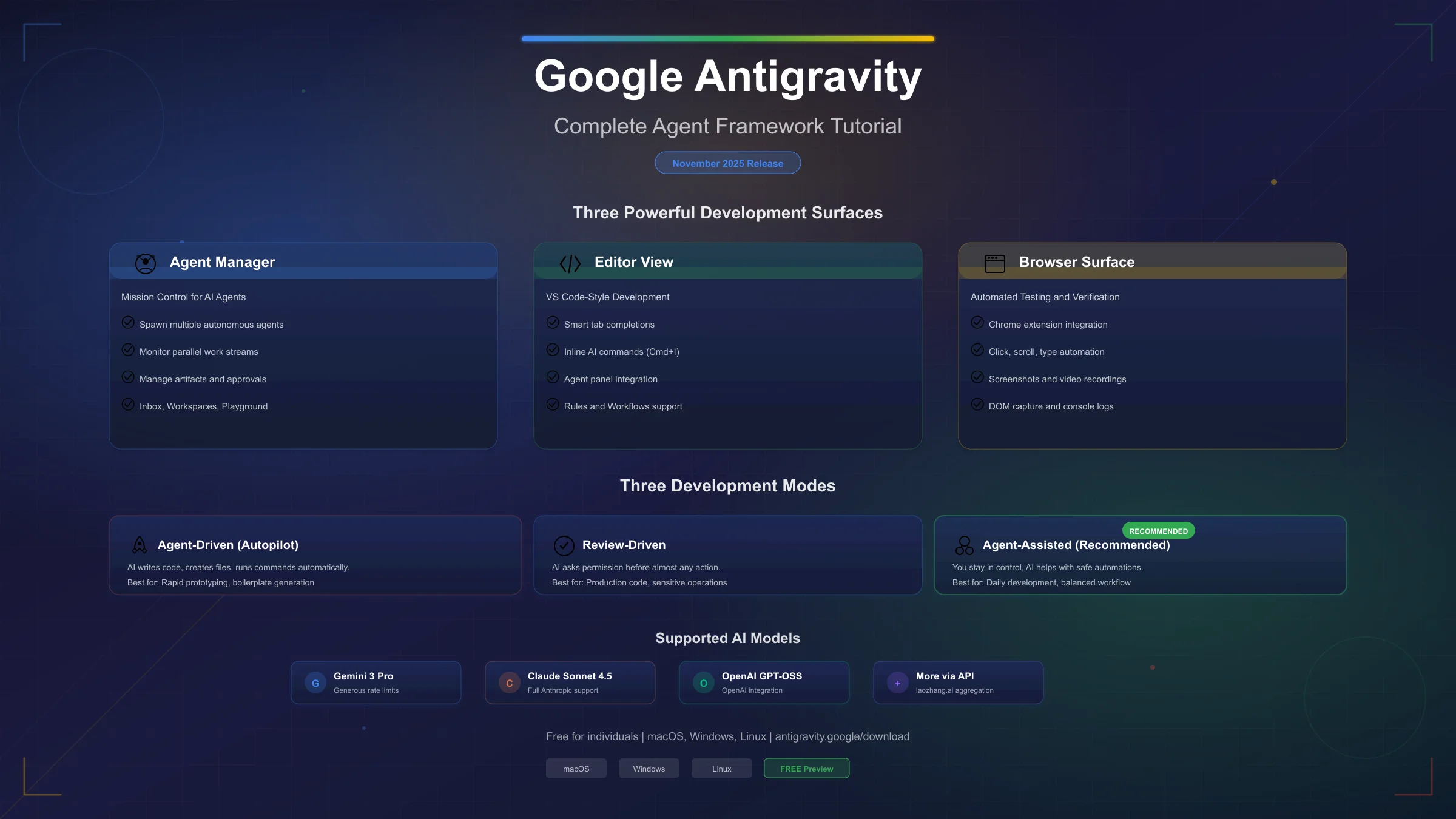
Google's v2.29.0 Remote AI Agent feature does not replace development in all local environments. However, it provides definite advantages in areas such as 'GitHub repository-based work' or 'long-duration tests and builds' where there is no need to handle local uncommitted code or access local PC hardware 2.
For example, assume a developer instructs AI in the morning at their desk to perform a large-scale code refactoring task involving modifying over 100 files. With past methods, one would have to wait endlessly for the compilation or tests running on the local PC's taskbar to finish. But in a Remote AI Agent environment, one can put the laptop to sleep and leave immediately after entering the prompt. By opening a browser window on a smartphone or tablet after lunch and connecting to the remote conversation, users can immediately view the AI's responses, which have already executed test codes and fixed errors on the server side.
The updated Remote AI Agent feature is being sequentially rolled out to users of Google's AI subscription services, 'Google AI Pro' or 'Google AI Ultra' 1, 2. Users seeking a cloud-based development environment should identify subscription conditions and limitations of the remote server environment (such as inability to access unlinked files or control local hardware) to determine their scope of use.
Ultimately, the v2.29.0 Remote AI Agents shift the answer to the question 'Where is code executed?' to the cloud server. Because Google servers handle AI calculations and file changes on behalf of the user, coding work continues uninterrupted even when one closes their laptop and switches screens to another device. However, work involving unfinished code inside the PC or hardware-based tools still requires 'Remote Control' or direct local execution; therefore, it is wise to understand the structural differences between the two features and choose accordingly.
References
- Changelog | Google Antigravity Docs · antigravity.google↩
- Remote Agents | Google Antigravity Docs · antigravity.google↩
- ↩
- ↩